
Well, this was the first foray into a new piece of hardware for Digitalchumps. I never thought I would have so much fun putting together a dual monitor mount and even more fun enjoying the majesty of trying different configurations. But here we are.
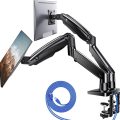
The NITROGLIDE Dual Monitor Stand from manufacturer HUANUO was a pleasant dive into the monitor stand world. The stand was easy to put together, gave plenty of good options to configure a 34” and a 27” set of monitors, and provided me with some good ideas to configure the monitors depending on the situation. To say I was impressed would be an incredible understatement.
When the HUANUO NITROGLIDE Dual Monitor Stand first arrived, it felt heavy and sturdy. Coming in at a solid 18.15lbs, the NITROGLIDE certainly guaranteed a solid build that could take some licks here and there. Why that is important is because I want to make sure that if I bump into it or bang it against the wall, which I did when prepping it, it still would be functional. Let me assure you, this thing is as hard as a rock, which bodes well for any potential accidents in the future. Having that extra reassurance of durability is important for an item like this because you never want to have to replace it. And it’s built strong enough to keep it a while.
Now, when I first removed it from the box, it had a base that featured an easy-to-put-together Dual C-Clamp design. Without reading the instructions, it was simple to figure out how the clamp was put together and how it tightened without the need for an additional set of screws. It was just an easy design that relied on weight and gravity to tighten its grip on the desk it was placed upon. When I first took this thing out, I was concerned that at some point my monitors would slip due to the clamp’s lack of perceived security, but HUANUO nailed the design, and the grip firmly locked onto my ugly wooden desk. I was incredibly impressed with how easy it was to do this and how sturdy it felt once tightened. It was impressive.
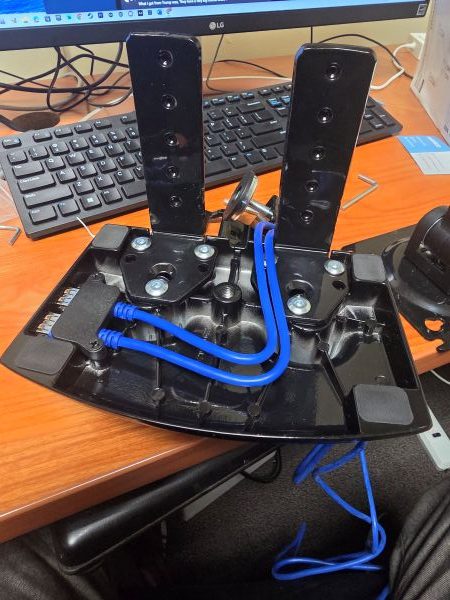
Before I completely locked down the clamp, I also ran two USB 3 wires through it. The USBs were easy to slide in, and a plastic piece rested comfortably over the USBs, which helped lock them in place. Once locked in, I slid the wires out of the middle of the clamp and awaited the arms so that I could run them up through them. This would provide me with power and allow me different ways to plug up mice, keyboards, or the occasional video capture device. Having two additional USB 3 options in a monitor stand helps free up some wires that I usually have to run to my Alienware desktop on the floor, and overall will allow for better wire management. The latter of which is important for me when I’m installing a piece of extra hardware that is supposed to allow me to have a cleaner desk to work on. It certainly allowed that to happen.
Once the clamps were secure and the USBs ran, I picked up the first set of arms, slid them into the clamp’s base, and locked them in with an Allen wrench. Once locked, the arms were not going anywhere unless I wanted them to. The small hex bolts tightened with ease and didn’t take much to secure. It was so simple that I thought I had missed a step, but thankfully, I didn’t.
After the first set of arms was placed, the second half just slid right into their joints. They tightened the same way and allowed for flexibility of monitor direction, and not much fuss to go along with it. Much like the first arms, the second pair locked in with two different Allen wrenches and allowed for full arm movement in any direction I wanted (up, down, left, right – whatever my heart’s desire). Again, it was simple.
The last piece to this dual monitor arm puzzle was the plates that latched onto the monitors. I attached the 360-capable plates to the end of each arm, screwed them in with the bigger with a Phillips head screwdriver that came with the hardware, and then prepared for the hardest part of the build – attaching said plates to said monitors.
Both monitors were prepared for the plates’ arrival, and all it took was unscrewing each monitor’s top pair of screws, but not completely removing them. After that, I completely removed the bottom pair of screws. The 360 plates slid in with ease, creating a hook with the top pair of screws, while allowing the bottom pair to be screwed back in completely and securely. The only trouble I had with this process was trying to figure out how to hold each monitor while I did the tightening. Eventually, I figured it out, and the installation was quite simple. I just rested each monitor’s edge on my thigh, lifted it, secured the plate, and enjoyed the build.
The design of the NITROGLIDE was HCI-friendly, straightforward, and such a delightful non-factor. It took almost thirty minutes to get all the above done, and the result for the past week has been two very secure monitors on top of each other that have allowed me to enjoy different configurations.
Now, some of those configurations start with the odd monitor placement below. My test with this configuration was not only to gauge how unsettled my co-worker could get with such an insane monitor position design, but also to see how the large monitor’s weight could be handled while completely not balanced with the smaller monitor. Spoiler alert: this thing didn’t move an inch. It held the monitors the way I wanted them, allowed me to untighten, twist, and turn them the way I wanted, and just created a bevy of options for me depending on the scenario.
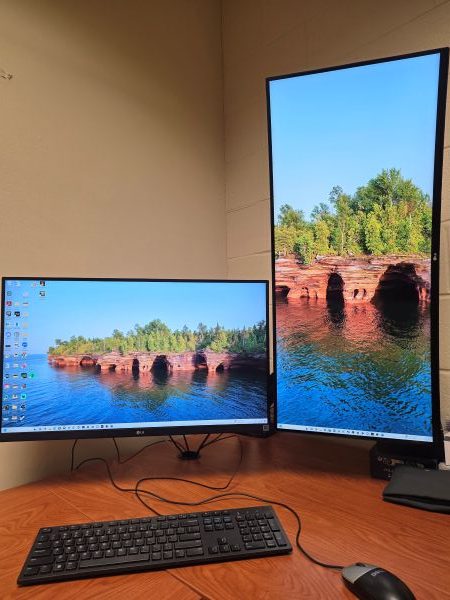
Staying with scenarios, I’m a video editor by trade, a streamer by desire, and a writer by…well…because I really enjoy it. To satisfy the first and second scenarios, I put the 34” monitor on the bottom and placed the 27” on top of it. For video editing, this configuration allowed me to keep audio and video separate, with Final Cut Pro on the bigger screen, while I could put Logic or any other assisting program on the top one. Having the ability to work with a clean and easy movement between monitors was such a breeze with these arms.
Related, when I was streaming this week, I placed OBS on the top screen, while leaving the gameplay from my PlayStation 5 on the bottom. This helped me keep track of comments, any scene changes, and other aspects of the stream without detouring my attention away from the game. Again, the configuration was simple as it was sturdy.
For the writing scenario, it was easier to place the screens side-by-side, with writing mainly on my left, on the smaller screen, and anything else, such as two email inboxes, on the right, on the bigger monitor. That workflow was efficient and kept me focused while allowing me to occasionally glance at my overflowing inboxes.
I’m sure as time goes on with the NITROGLIDE, I will find even more ways to configure the monitors to my liking. As it stands, no pun intended, the dual monitor stand is easy to put together, install, and even easier to use in different configurations. This was a positive first experience with a dual monitor stand. I’m going to have to test out more.
Anyway, let’s wrap up this review.
Conclusion
The HUANUO NITROGLIDE Dual Monitor Stand is easy to build, simple to use, and provides a bevy of different configurations to fit any work (or play) scenario. I’m incredibly impressed and highly recommend this if you’re looking for a dual monitor stand solution.
You can find the HUANUO NITROGLIDE Dual Monitor Stand here.